Install Trade Fusion AI
Copy the Trade Fusion AI file into the MetaTrader 5 Experts folder. Restart MT5 so the EA appears in the Navigator panel.
Trade Fusion AI
MT5 setup
Install Trade Fusion AI, attach it to one MT5 chart, enable AutoTrading, and allow the three Signal Hub WebRequest URLs listed below.
Copy the Trade Fusion AI file into the MetaTrader 5 Experts folder. Restart MT5 so the EA appears in the Navigator panel.
Attach Trade Fusion AI to any chart. One chart is enough because the EA listens for Signal Hub events and resolves symbols locally.
Paste your personal license key into the EA inputs. The Signal Hub will activate and bind the license on the first successful Trade Fusion AI poll.
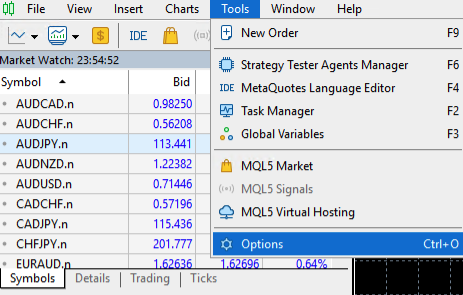
In MetaTrader 5, open Tools and choose Options.
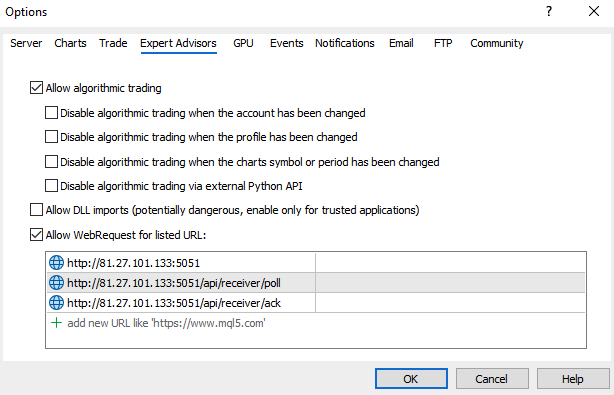
Open the Expert Advisors tab. Enable algorithmic trading and tick Allow WebRequest for listed URL.
Add exactly these three addresses to the WebRequest list:
http://81.27.101.133:5051
http://81.27.101.133:5051/api/receiver/poll
http://81.27.101.133:5051/api/receiver/ack
Make sure AutoTrading is active in the top MT5 toolbar. After the EA starts, check the Experts tab for license, polling, symbol mapping, or connection messages.
A Windows VPS with low latency is recommended. Result differences can still happen because of spread, slippage, broker execution, and connection quality.
Support
For faster setup checks, include your MT5 broker, account type, server name, and whether the account uses suffixes such as EURUSD.n or EURUSD.pro.